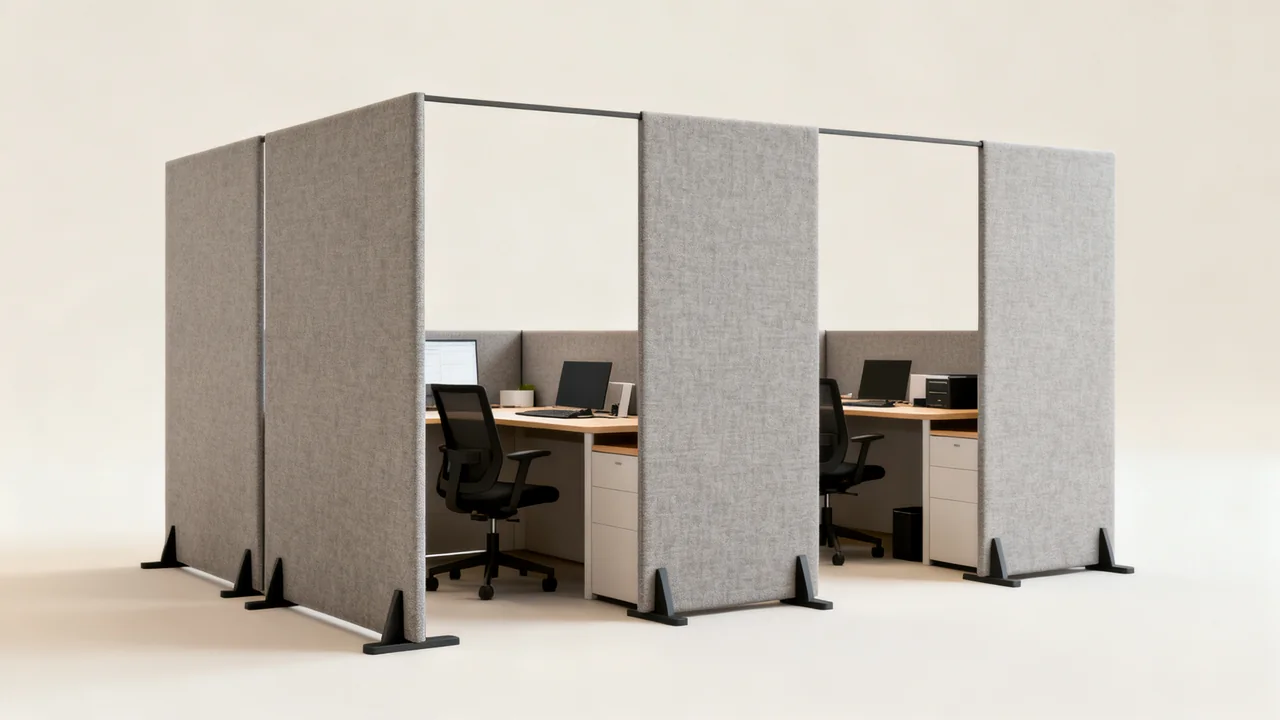
A compact laptop workstation still needs to fit a person, a chair, input devices, cables, and the actual work. The laptop’s small footprint is only one part of the space requirement. Start with a usable arrangement and then look for furniture that accommodates it.
This guide focuses on planning the space and choosing furniture. There is no universal minimum desktop size or weekly-use threshold that makes a laptop setup suitable for every user.
Define what happens at the workstation
List the tasks: short visits, regular typing, document comparison, video meetings, or a full working day. Record the laptop models and any external keyboard, mouse, screen, headset, or paperwork people need. A station for one known user can be checked directly with that person; a shared station needs enough adjustment for its actual users.
Decide which items remain at the station and which arrive with the user. A supplied keyboard reduces what someone needs to carry but requires a suitable storage and cleaning arrangement. Personal accessories may vary in size, so do not plan solely around the smallest device currently in use.
Mock up the work surface before buying
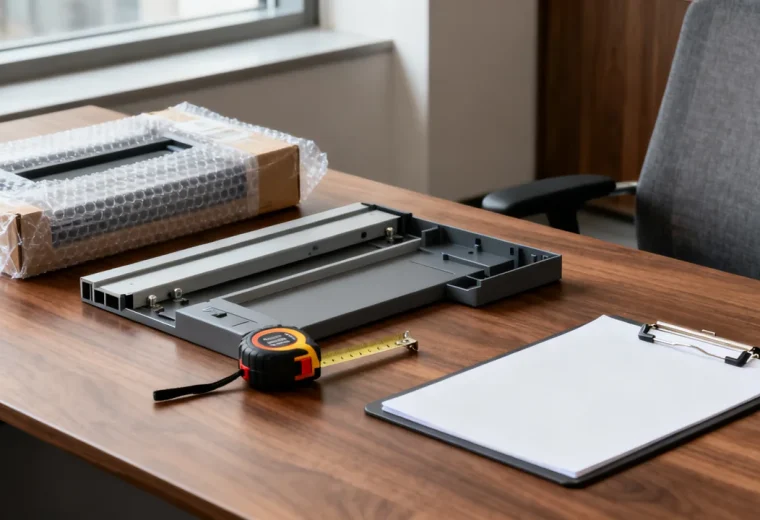
Use an existing table or a taped outline to place the real equipment in a workable order. Check that the keyboard and pointing device can be used without crowding, the display can be viewed comfortably, and papers can be consulted without covering the input area.
Measure that arrangement, including cable connections and any laptop stand. Then compare it with the usable desktop dimensions. Rounded corners, deep rear trays, partitions, or a narrow front edge can reduce the working area even when the overall dimensions look adequate.
Keep laptop ventilation openings clear according to the device instructions. A stand must support the particular laptop securely without obstructing cooling or relying on an unstable improvised stack. Check its capacity and the furniture’s ratings for the whole setup.
Separate the display and input positions where needed
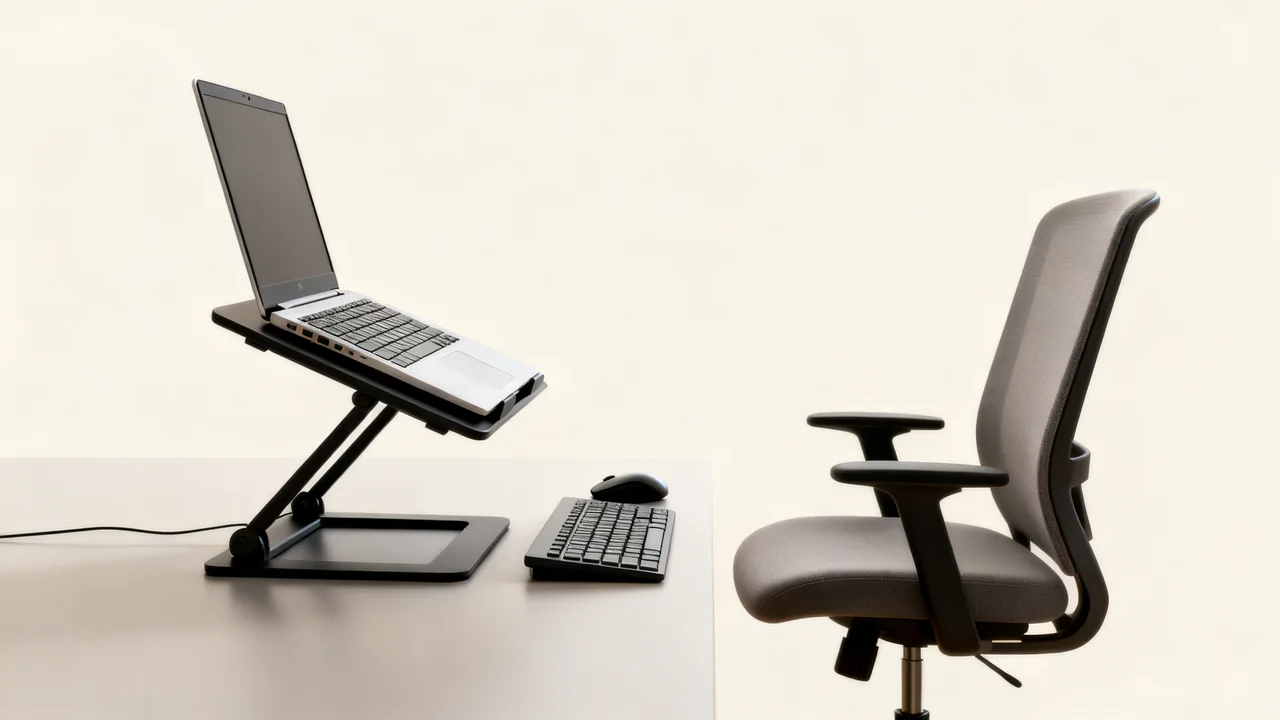
The laptop screen and built-in keyboard move together, which limits independent positioning. OSHA’s workstation purchasing guide includes an external keyboard and input device for laptops and tablets. Those accessories can let the laptop display be positioned independently, or a suitable external display can be used.
OSHA’s monitor guidance describes placing the top line of the screen at or below eye level, with the arrangement considered alongside the desk, chair, and input devices. Apply the guidance to the individual rather than raising every laptop by the same amount.
A stand alone is not a complete solution if the user must reach up to its raised keyboard. Trial the display and input arrangement together. If discomfort persists, use the workplace’s appropriate assessment process rather than prescribing a different accessory from measurements alone.
Include the occupied chair and leg space
Measure the chair in use, not only pushed under the desk. Leave space for entry, exit, movement, and access to adjacent furniture, while preserving the required circulation routes. A nook that accepts two desktops may still be too small for two occupied workstations.
Check the available chair adjustments with the intended users and the selected desk. Under-desk drawers, support rails, and cable baskets must not crowd the user’s legs or prevent the chair from reaching a workable position. Choose storage after checking that clearance, rather than assuming a shallow drawer will fit everyone.
Plan power and compatible connections
Identify the actual charger and outlet arrangement. There is no universal laptop charging cable: the device, charger, cable, and any dock must support the required connection and power. Keep a short approved compatibility list for a shared station.
Route cables so they allow the necessary movement without being trapped, stretched, or placed across a walking route. For adjustable furniture, check the cable path through the intended movement as directed by the manufacturer. Building electrical work and outlet placement should be handled through the responsible facilities process.
Choose a configuration by its constraints
| Configuration | Useful possibility | Check before choosing |
|---|---|---|
| Individual desk | A defined setup for one person. | Occupied chair space, storage, and the range of needed adjustments. |
| Shared bench | Several stations on one surface. | Enough room for each complete setup and independent access. |
| Fold-down surface | A surface that can be stored away. | Permitted mounting, supported load, locking operation, and clearance when open. |
| Portable table | A movable temporary arrangement. | Stability, suitable height, load rating, and safe storage. |
Do not use a hallway or under-stair location solely because furniture fits there. Confirm that its intended use, access, lighting, and required routes remain suitable.
Try the proposed setup with users
As a hypothetical planning exercise, an office arranges two laptops, keyboards, pointing devices, and chairs on a candidate shared bench. Both users sit and work with the equipment while the planner checks entry, movement, cables, and neighboring circulation. If either setup is cramped, the layout or furniture changes before purchase. No space-saving percentage is assumed.
Check light and screen reflections at the actual location and relevant times of day. The solution may involve moving the workstation, adjusting blinds, or changing task-light position. Do not assume laptop screens all behave alike.
- Confirm the full equipment list and compatible connections.
- Measure usable surface and occupied chair space.
- Check display, keyboard, and pointing-device positions together.
- Keep leg space and required routes clear.
- Verify mounting, load, ventilation, and cable instructions.
- Collect user feedback after the station is in use.
Have a question or a correction?
Contact the editorial team