Dust accumulation on shared office electronics like printers, scanners, desktop monitors, and conference room AV systems can restrict airflow, obscure input sensors, and require more frequent deep cleaning. This guide focuses on the surrounding workspace: identifying dust sources, arranging storage and coordinating with facilities. These measures do not extend a manufacturer’s required service interval or authorize changes to equipment or building ventilation.
Map Dust Entry and Accumulation Hotspots First
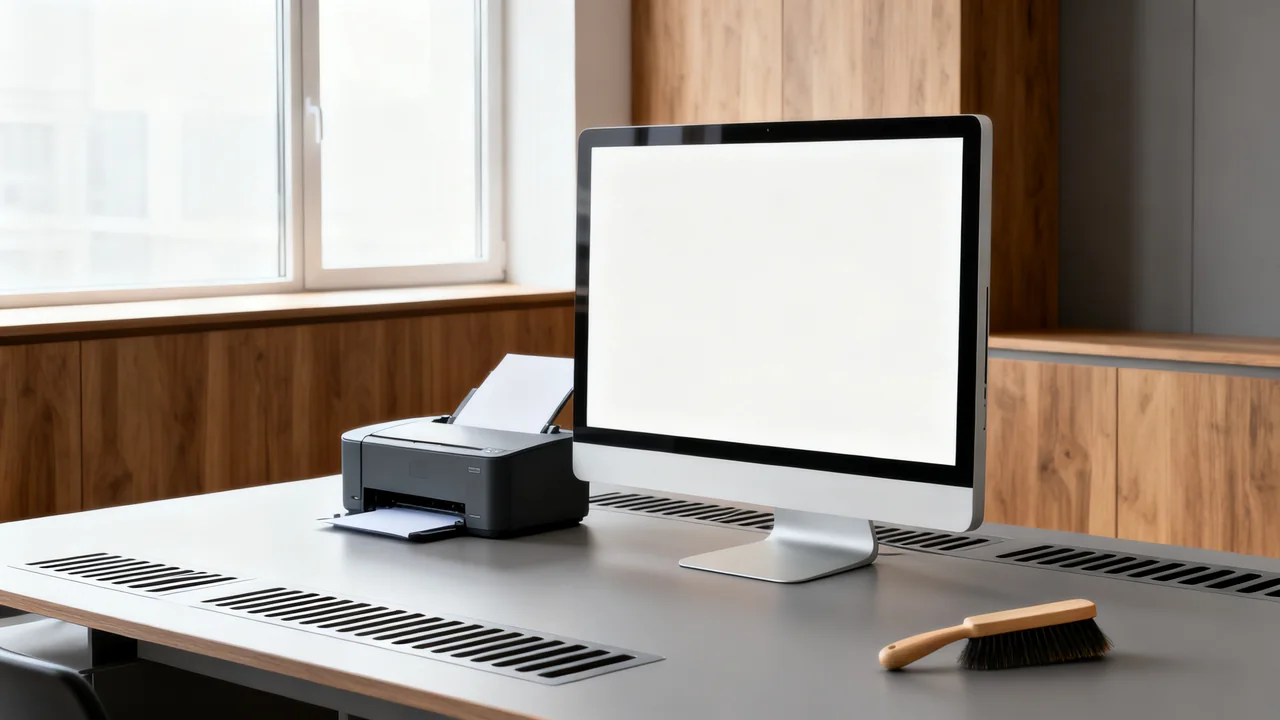
Before implementing any changes, conduct a low-effort walkthrough of spaces with shared electronics to identify where dust is entering and settling most heavily. Start by noting environmental factors: proximity to exterior doors or windows that are opened regularly, nearby HVAC vents that blow air directly onto devices, high-traffic walkways where foot traffic stirs up dust from floors, and storage areas for paper, office supplies, or cardboard that generate small particulate matter. For each shared device, mark where dust settles first: usually on flat top surfaces, vent openings, input trays, or gaps between device components and the desk or cart it sits on.
Use this map to prioritize actions for highest-impact areas first. For example, a printer beside a delivery entrance may warrant checking the entry-cleaning arrangements before buying a device cover. Record your observations in a shared note so you can adjust measures later if dust patterns change, such as after a floor resurfacing project or a shift in office layout.
Review Placement Without Compromising Ventilation
Check equipment clearance and support requirements before moving it. If a device sits in a visibly dusty location, discuss an alternative with the equipment owner and facilities team. Keep access, cable reach, tray operation and escape routes in view; reducing dust is not useful if the new location creates another problem.
Do not attach filters, deflectors or barriers to building vents as an informal office experiment. Ask facilities to investigate a dusty supply register, damaged filter arrangement or unusual airflow. The heating and ventilation system must continue to operate as designed.
Use only a stable support suitable for the device’s weight and intended placement. Some equipment is designed to stand on the floor; do not put it on an improvised riser or cart merely because floor-level dust is visible. Clean the surrounding area and ask the supplier about placement options.
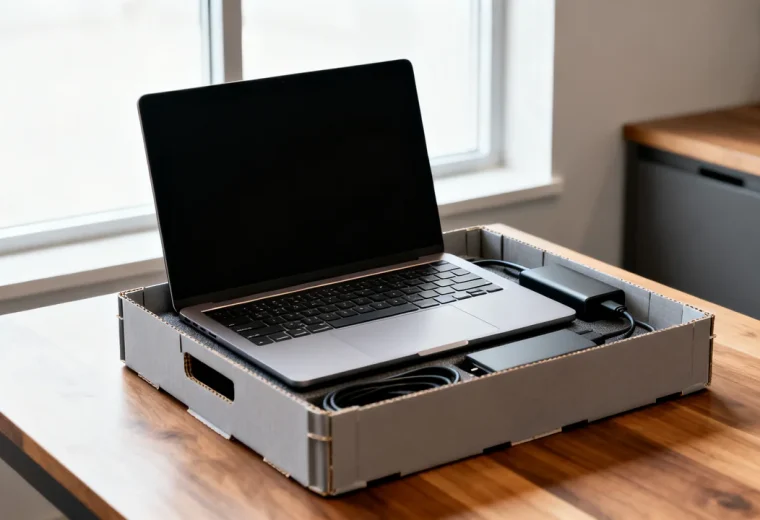
For occasional-use portable equipment, use the manufacturer’s recommended case or cover only under the stated storage conditions. Allow cooling as instructed, disconnect where required, and remove the cover completely before use. Do not cover a device that is operating, charging, warm or required to remain powered.
Reduce Dust Generation at Nearby Sources
Many shared electronics are located near sources that generate dust, which you can address with small, low-effort changes. If you store paper, cardboard, or office supplies in the immediate vicinity of shared electronics, move those items to a closed cabinet or lidded storage bin. Loose paper fibers and cardboard dust are common contributors to buildup on printer and scanner components, so keeping these supplies sealed reduces the amount of particulate matter circulating near devices.
Avoid using dry dusting cloths or feather dusters near shared electronics during regular office cleaning, as these tools tend to stir up dust rather than capture it, leading to more buildup on nearby devices. Agree with cleaning staff on compatible dust-capturing methods for surrounding surfaces. Keep general cleaning products and equipment separate from the device’s own approved cleaning supplies; do not blow or sweep debris into vents.
If your office has hard-surface floors, place a walk-off mat at every exterior entry point to capture dirt and dust from shoes before it is carried into the space. Ensure mats are shaken out or cleaned regularly, per the mat manufacturer’s instructions, to prevent them from becoming a dust source themselves. Schedule floor cleaning to minimize disruption and use properly maintained equipment suited to the surface. Avoid directing exhaust or stirred-up debris toward electronics. Waiting for dust to settle is not a substitute for controlling the source and cleaning effectively.
Illustrative Example: Investigating a Dusty Printer Area
Imagine an office that notices dust accumulating around a shared printer near a delivery entrance. This is a hypothetical process example, not a documented performance result. The manager records the location, nearby cardboard storage, cleaning arrangements and any actual printer faults before changing anything.
Facilities reviews the entrance mat and nearby ventilation. The office keeps wrapped paper in a suitable cabinet and removes unnecessary cardboard packaging from the immediate area. Any equipment relocation is checked against support, access and ventilation requirements.
The team compares observations over the next review period while keeping the printer’s required maintenance schedule unchanged. If surface dust falls but jams continue, the service provider investigates the jams separately. The office does not assume that dust caused every fault or promise that environmental changes will reduce cleaning to a particular frequency.
Assess Additional Measures With Facilities
Persistent dust may point to building work, an entry-control problem or an unsuitable workspace. Escalate unusual contamination, particularly construction debris, rather than trying to protect an occupied office with improvised device enclosures. A desktop purifier does not make a hazardous environment suitable.
| Measure | Useful question | Boundary |
|---|---|---|
| Entry mat and cleaning arrangement | Is tracked-in dirt being captured and removed? | Keep mats secure and clear of access or trip hazards |
| Closed supply storage | Can packaging and loose stock be kept organized away from devices? | Maintain safe shelf loading and dry storage |
| Portable air cleaner | Does facilities consider it suitable for the room and actual problem? | Check room capacity, maintenance, noise and placement; do not promise device-fault prevention |
| Equipment storage case or cover | Does the device maker approve this storage method? | Use only in the permitted powered-off and cooled condition |
EPA describes air cleaning as a supplement to source control and ventilation. Its residential guide explains the principle, but facilities should assess a workplace application. Do not add adhesive register filters or sealed enclosures around operating devices without the relevant professional and manufacturer approval.
Adjust User Behaviors to Minimize Dust Disruption
Small, clear guidelines for staff using shared electronics can reduce dust buildup without adding significant work to team routines. Post a short, visible note near each shared device listing 2-3 simple rules tailored to that specific location. For example, a note near a printer next to an exterior door might ask staff to close the door completely after entering or exiting, and to avoid placing open cardboard boxes on the surface next to the printer. A note near a portable scanner might identify its approved storage case and state that it is stored only after the required shutdown and cooling steps.
Avoid asking staff to perform any device cleaning beyond wiping exterior flat surfaces with an approved cleaning cloth, as detailed in your existing equipment cleaning guides. All internal cleaning, such as clearing dust from vents or rollers, should follow your existing maintenance protocols and be performed only by staff trained on that specific device, or by a qualified service vendor.
For offices that allow personal desktop fans near shared workspaces, ask staff to ensure fan airflow is not directed toward shared electronics, as fans can stir up and deposit dust onto device surfaces quickly. If a shared device is located near a desk with a personal fan, work with the staff member using the fan to adjust its position, or move the device to a different spot if relocation is feasible.
Monitor and Refine Your Measures Over Time
Dust levels can change due to seasonal factors, building renovations, changes in office occupancy, or shifts in how spaces are used, so it is useful to check dust accumulation patterns on a regular cadence that aligns with your existing office maintenance schedule. During your regular office walkthroughs, note how much dust has settled on shared device surfaces since your last check, and compare it to your baseline observations from your initial hotspot map. If a device that previously had low dust buildup now requires more frequent cleaning, investigate recent changes that might be contributing, such as a new storage area for supplies nearby, a broken window seal, or a change in HVAC vent settings.
Adjust your measures as needed: if a new entrance is added near a shared printer, add an extra walk-off mat; if your office switches to a new paper supplier that generates more paper dust, move extra paper storage further away from the device. Avoid making large changes all at once, so you can easily identify which adjustments are most effective.
Actionable Dust Reduction Checklist
- Map dust hotspots around all shared electronics, noting nearby dust sources and airflow patterns
- Relocate devices away from direct HVAC vents, exterior doors, and high-traffic walkways where possible
- Store paper, cardboard, and loose supplies in closed containers outside the immediate vicinity of shared devices
- Request cleaning staff use dust-capturing cloths near electronics and vacuum carpeted areas when the office is unoccupied
- Post 2-3 simple, location-specific user guidelines near each high-use shared device
- Check dust accumulation regularly and adjust measures as patterns change
All dust reduction measures should complement, not replace, your existing scheduled equipment cleaning routines, including screen cleaning, scanner glass maintenance, and internal device servicing. Always reference the specific manufacturer’s manual for each device before making any changes to its placement or storage, to ensure you do not violate warranty terms or create safety risks.
Have a question or a correction?
Contact the editorial team