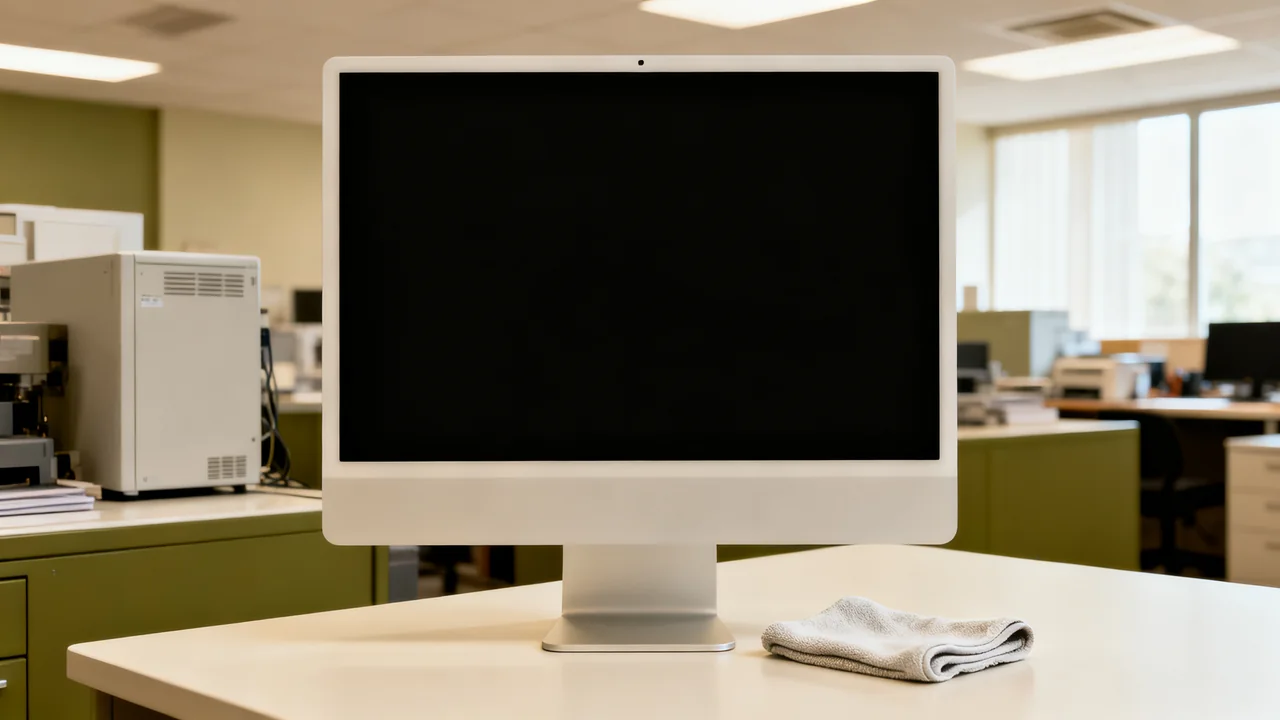
Office monitor surfaces vary by model. An unsuitable cleaner, dirty cloth or excessive pressure can damage a display. For a shared workstation, the useful starting point is a short care instruction tied to the exact model, so the next person does not have to guess which product to use.
Identify the Exact Model and Its Care Instructions
Find the model label and locate the manufacturer’s user manual or support page. Record the screen-cleaning instructions, permitted cloth and any permitted liquid. Do not infer a cleaning method from a matte appearance, warm color tint or advertised blue-light feature. These observations do not establish what the surface can tolerate.
Use the product-specific instructions if general brand guidance differs. For example, Dell’s monitor-cleaning guidance warns about unsuitable cleaning methods and applying liquid directly. Other devices may have different approved materials. Do not treat a cleaner’s generic “screen safe” label as approval for every panel.
If instructions cannot be found, contact support before applying a liquid. Do not attempt to polish off or remove a damaged coating. Photograph suspected damage and ask the manufacturer about assessment and available service; warranty coverage depends on the product and circumstances.
Coating-Safe vs. Unsafe Cleaning Supplies
Many common household and office cleaning supplies are too harsh for monitor coatings, even if they are marketed as “glass safe.” The table below outlines which supplies are appropriate for routine use, which are only suitable for specific tough stains, and which you should avoid entirely to prevent coating damage.
| Supply Type | Approval Needed? | Use Case | Risks If Misused |
|---|---|---|---|
| Lint-free microfiber cloth (new or recently washed without fabric softener) | Confirm in the model’s care instructions | Routine dusting, light smudge removal | Scratches if cloth has trapped dirt particles |
| Distilled water | Confirm in the model’s care instructions | Dampening cloth for dried dust or light smudges | Water spots if over-applied, seepage into panel edges if excess is used |
| Manufacturer-approved screen cleaning solution | Exact-model approval plus product label | Tough oil-based smudges, food splatters | Damage if the product is incompatible or applied contrary to instructions |
| Paper towels, toilet paper, or facial tissues | No | Never use on screens | Micro-scratches from wood pulp fibers, lint residue |
| Window cleaner, all-purpose cleaner, or rubbing alcohol | No | Do not use unless explicitly permitted by the exact-model instructions | Stripping of anti-glare or anti-smudge coating, permanent streaking |
| Disinfectant wipes (unformulated for screens) | No | Do not use unless explicitly permitted by the exact-model instructions | Coating erosion, discoloration of monitor bezels |
For shared workstations, store coating-safe supplies separately from general office cleaning supplies to avoid accidental misuse. Label microfiber cloths reserved for screens clearly so they are not used for wiping desks, spills, or other dirty surfaces. If you use a cleaning service, provide explicit written instructions about which supplies to use on monitors to prevent damage during routine janitorial visits.
A Controlled Cleaning Routine
Inspect the screen when it needs attention and clean only as needed using the model’s instructions. A fixed weekly cleaning schedule is not a universal requirement. The following workflow organizes the task; the manufacturer’s method determines the permitted materials and wiping technique.
- Shut down and disconnect power as instructed, and let the monitor cool. Move drinks and unrelated cleaning products away from the work surface.
- Check that the specified soft cloth is clean and free of grit. Use a fresh cloth if uncertain. Support the monitor without pressing on the screen.
- Start with the approved dry method where specified. Use light pressure and the instructed wiping direction. Stop if grit, a crack or surface damage is visible.
- If the manual permits a damp cloth, apply only the specified liquid to the cloth away from the monitor. It should not drip. Never spray the screen or allow liquid to run into edges, ports or controls.
- Clean the stand and housing with separate supplies approved for those materials. Approval for the housing does not mean approval for the screen.
- Allow the surfaces to dry completely according to the instructions before reconnecting power. Do not substitute an arbitrary five-minute timer for a dryness check.
When a Mark Does Not Lift
If the approved method does not remove a mark, stop and contact the manufacturer. Escalating to a stronger solvent, pressing harder or holding a wet cloth against the panel can create a larger problem. Do not use a fingernail, scraper, abrasive pad or polishing compound on a display.
A small test patch is not permission to use an otherwise unapproved cleaner: some effects appear later, and a corner of the screen is still part of the display. Record what has already been used, take a photograph with the screen off and another showing the issue during normal use, and ask support what to try next. Avoid repeatedly cleaning the same area while waiting for advice.
Separate Cleaning from Disinfection
Removing visible dirt is not the same as a validated disinfection process. If the workplace requires disinfection, coordinate with the facilities team and obtain a method compatible with the exact display and the disinfectant label. Do not assume that a longer wet-contact time is safe for a screen merely because it is required for another surface.
Do not add adhesive protectors or UV equipment as a workaround unless the display maker approves the accessory and method. If the required process cannot be used on the existing model, raise that compatibility issue with the workplace’s responsible manager. Consider the ease of cleaning accessible controls and touch surfaces when specifying replacement equipment, rather than promising that any display can tolerate a common disinfectant.
How to Spot Coating Damage and Next Steps
There is no universal coating lifespan that can diagnose a screen. Persistent marks can have several causes. Record the following observations for support rather than assuming they all prove coating failure:
- Permanent hazy or streaky areas that do not go away after cleaning, even with a dry cloth
- Patchy, uneven areas where the coating has peeled or worn off, often appearing shinier than the surrounding screen
- Rainbow-like discoloration when the screen is off or displaying a white background
- Micro-scratches that are visible even when the screen is turned on
If you notice coating damage on a monitor, first review your recent cleaning practices to identify the cause: did someone use an improper cleaner, apply too much pressure, or use a dirty cloth? Update your supply labels or cleaning instructions to prevent the same issue from occurring on other monitors. Minor coating wear does not require immediate monitor replacement unless it significantly impairs visibility for users. If visibility is impaired, remove the monitor from the affected workstation and ask the supplier about service or replacement options.
Actionable Pre-Cleaning Checklist
Before you start cleaning any office monitor, run through this quick 5-step checklist to avoid preventable coating damage:
- Confirm the monitor is turned off, unplugged, and fully cooled
- Verify your cleaning cloth is lint-free, free of trapped dirt, and reserved only for screen use
- Confirm any cleaning solution you are using is explicitly approved for your monitor’s coating type
- Check that any damp cloth is wrung out thoroughly so no liquid drips when squeezed
- Stop if the instructions or product compatibility are unclear; obtain manufacturer guidance before proceeding
Coating-safe monitor cleaning relies on consistent, gentle practices rather than specialized expensive supplies. By training your team on proper procedures and separating screen cleaning supplies from general office cleaning products, you can extend the lifespan of your office monitors and avoid unnecessary replacement costs.
Have a question or a correction?
Contact the editorial team