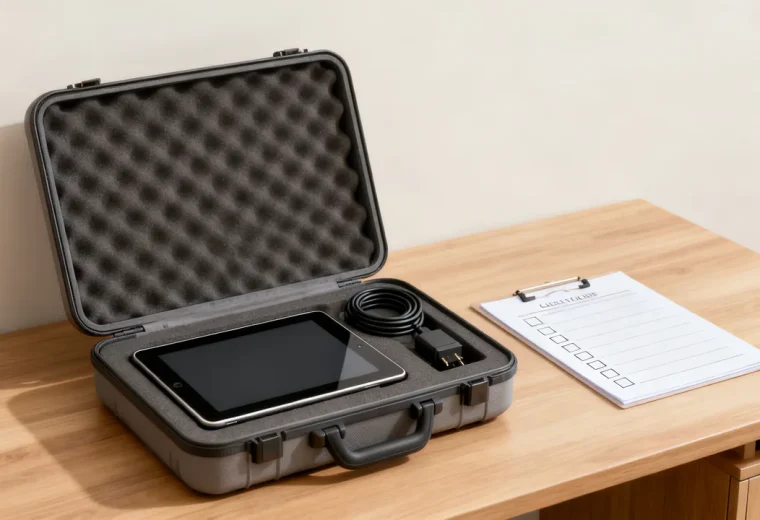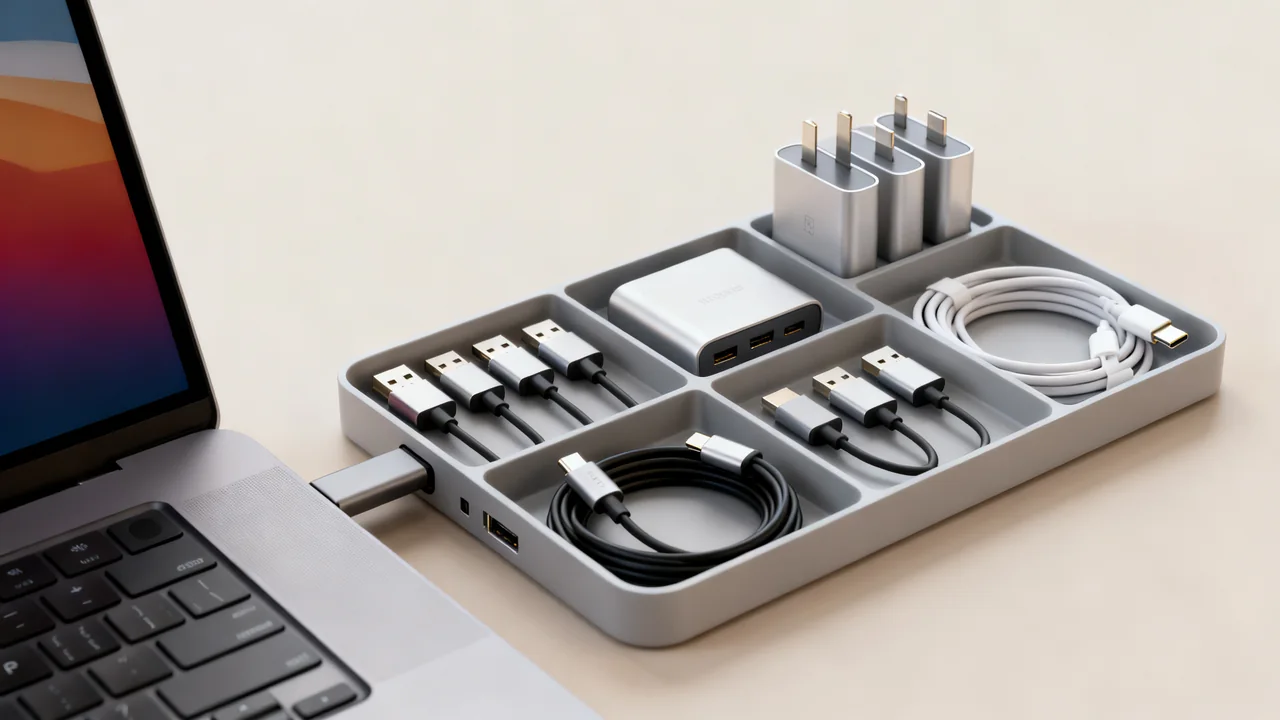
Office connectivity can feel like a never-ending game of catch-up: one employee needs a USB-C to HDMI adapter for a client presentation, another needs a charging cable for a work-issued laptop, and a third can’t connect their external monitor because the only available DisplayPort cable is tucked in a desk drawer across the office. Standardizing these accessories doesn’t require buying dozens of every possible type, nor does it force you to mandate universal device upgrades for your team. The process focuses on mapping existing needs, grouping compatible accessories, and setting clear systems for access and tracking so you only purchase what you will actually use.
All device compatibility depends on manufacturer specifications, so confirm port types, power requirements, and approved accessories for each work device before adding any cable or adapter to your standardized set. For charging cables, always verify that the charger, cable, and device support the required charging method and power level to avoid performance issues. Avoid modifying cables, adapters, or device ports, and never use accessories with frayed casing or bent pins, as these present electrical and equipment damage risks.
Map Existing Device Port Needs First
Before purchasing any new accessories, take inventory of the ports on every work-issued device your team uses, plus common personal devices employees bring to work or use for hybrid roles. Categorize ports by their primary use case: power delivery only, data transfer, video output, or multi-use (for example, many USB-C ports support all three functions). Note which devices are owned by the company versus employee-owned, as company-owned devices can have standardized accessory requirements, while personal devices may only need occasional access to shared adapters for meeting rooms or shared workstations.
Document the following for each device type: the number of each port type, any restrictions on adapter compatibility (for example, some laptops only support video output through specific USB-C ports), and the maximum power or data speed required for accessories to work as intended. If your team uses specialized equipment like external hard drives, high-resolution monitors, or audio interfaces, note any accessory requirements for those devices separately, as they may need higher-spec cables than standard office use cases.
Categorize Accessories by Use Case and Access Type
Once you have your port map, group cables and adapters into two distinct categories: individual assigned accessories and shared pool accessories. Separating these categories eliminates overbuying caused by purchasing duplicates for use cases that only require a small shared supply.
Individual assigned accessories are those an employee uses daily for their primary work device, such as a laptop charging cable or a cable to connect their permanent desk monitor. These are assigned to a specific person and stored at their desk, so plan the quantity around each assigned setup, plus any justified spares for new hires or replacement of broken assigned units. Confirm spare quantities based on your team’s typical rate of accessory wear and new hire onboarding frequency, rather than generic percentage guidelines.
Shared pool accessories are for temporary use, such as adapters for connecting personal devices to meeting room displays, extra cables for visiting contractors, or adapters for occasional use with specialized equipment. These are stored in a central, easily accessible location, and you only need enough to cover peak concurrent use, not one per employee. To calculate peak concurrent use, review available accessory request logs across representative busy periods, or survey your team to find the maximum number of people who need the same accessory type at the same time (for example, during all-hands meetings or multiple concurrent client presentations).
Illustrative Example
Consider a hypothetical office with three meeting rooms, each using an HDMI display. Its device inventory confirms that the usual presenter laptops have USB-C ports supporting video output, and the proposed adapters have been checked with those laptops and displays. The team chooses one compatible USB-C-to-HDMI adapter for each room: three adapters in total.
A visitor with a different device is handled as a separate compatibility request rather than a reason to buy every connector combination. The team records the known working device, cable, adapter, and display combinations so the next purchase can repeat a verified setup.
This is a planning example, not a universal kit. USB-C connector shape does not by itself establish video, data, or charging capabilities. A USB-A port is not interchangeable with a video-capable USB-C port, and a simple plug converter does not create missing display functionality. Check the manufacturer’s requirements for any specialist USB display adapter, including software support.
For technical background, see USB-IF’s cable and connector guidance and Microsoft’s USB-C compatibility guidance.
Create a Standardized Accessory Tier List
To avoid buying unnecessary niche accessories, create a tiered list of what you will stock, based on how frequently the accessory is used across your team. This list lets you make intentional purchase decisions when requests come in, instead of buying items that will only be used once and then forgotten in a storage drawer. Use the following tier structure as a starting point, adjusting based on your team’s specific device map:
| Tier | Stocking Rule | Use Case Examples |
|---|---|---|
| Tier 1 (High Usage) | Stock 1 per applicable employee, plus spares for replacements/new hires aligned with your team’s typical wear rate and onboarding schedule | Charging cables for company-issued laptops, monitor cables for permanent desk setups |
| Tier 2 (Medium Usage) | Stock enough for peak concurrent use (measured via past request data or team survey), no assigned copies | Meeting room display adapters, hot-desk monitor cables, portable charging cables for travel |
| Tier 3 (Low Usage) | Do not stock pre-emptively; purchase only when a specific confirmed need arises | Adapters for legacy equipment, specialized cables for one-off project equipment, adapters for rare personal device port types |
When a request for a Tier 3 accessory comes in, confirm the use case timeline: if the item is only needed for a short period, consider borrowing it from an employee who already owns one, if appropriate, instead of purchasing a new unit for permanent stock. If you do purchase a Tier 3 item, add it to the shared pool after the initial use so it is available for future needs if they arise.
Implement a Shared Accessory Check-Out System
A common cause of overbuying is losing track of shared accessories: an employee takes an adapter for a presentation, tucks it in their bag, and forgets to return it, so you purchase a replacement only to find the original a month later. A simple check-out system makes this issue easier to detect without requiring complex software or time-consuming tracking steps.
For the shared pool, label each accessory with a unique identifier, such as “ADPT-01” for the first USB-C to HDMI adapter. Place a printed sign next to the shared storage bin with a list of all shared accessories and a blank space for employees to write their name, the date they are taking the item, and the expected return date. No approval is required for check-out, but set clear expectations that all shared accessories must be returned by the agreed date unless a longer use case is discussed with the office manager. For meeting room accessories that only ever stay in the meeting room, label them with the room name and store them in a fixed pocket or bin inside the room so they are not taken to other areas of the office.
During your regular office supply check, cross-reference the shared accessory list with the items in the bin. If any item is checked out past its expected return date, send a short reminder to the employee who checked it out. This regular check takes minimal time and prevents the need to buy replacement items for accessories that are simply misplaced.
Optimize Storage to Reduce Unplanned Purchases
Even with a clear tier list and check-out system, overbuying can happen if employees can’t easily find the accessories they need and assume you don’t have them in stock. Design your storage to make it immediately clear what you have available, without requiring employees to dig through bins of unlabeled cables.
For individual assigned spares, store them in clearly labeled bins sorted by accessory type, for example “USB-C Laptop Charging Cables (Spare)” and “DisplayPort Monitor Cables (Spare)”. Keep these bins in a locked or restricted supply closet so they are only accessed when an employee needs a replacement for a broken assigned accessory, which prevents them from being taken for temporary use and depleting your spare stock.
For the shared pool, store accessories in an open, easily accessible bin near the front desk or meeting rooms, with dividers for each type of adapter or cable. Print a list of all shared accessories and tape it to the front of the bin, so employees can quickly confirm if the item they need is in stock before asking you to purchase a new one. For small adapters that are easy to lose, use small plastic bags or hanging hooks to keep them visible and separated, so employees don’t have to rummage through the bin and potentially miss the item they are looking for.
Evaluate Tradeoffs for Standardization vs. Niche Needs
Full standardization of every cable and adapter is not practical for most small offices, as it would require purchasing every possible combination of ports to cover every edge case. Instead, weigh the following tradeoffs when deciding whether to add a new accessory to your standard stock:
- How many employees would use the accessory? If only one employee needs a specific adapter for a personal device, ask them to provide their own instead of adding it to your shared stock, unless the adapter is required for core job functions.
- How often is the accessory needed? If an adapter is only needed rarely for a specific project, purchase it on an as-needed basis instead of stocking it pre-emptively, even if multiple employees could use it in theory.
- Is the accessory compatible with multiple device types? A multi-port hub may serve several confirmed needs through a compatible host connection. Compare the exact input, output, power, display, and software requirements; the presence of several sockets does not make a hub universal.
For frequent visitors, record the devices and connections you actually encounter. Keep a short list of supported setups and a fallback presentation method. Do not promise a universal adapter; confirm a proposed hub or adapter with the intended equipment before depending on it in a meeting.
Short Actionable Checklist for Standardization
- Map ports on all company-issued devices and common personal devices used by your team before purchasing any new cables or adapters
- Categorize all accessories into individual assigned or shared pool, and stock only enough to cover confirmed use cases
- Implement a simple written check-out system for shared accessories, with regular checks to follow up on overdue items
- Label all storage bins clearly so employees can see what is in stock without asking for assistance
- Review your accessory stock quarterly to remove any items that have not been used for an extended period, and adjust your stock levels based on changing device needs
When replacing devices, review the approved accessory list at the same time. Retain compatible accessories where they meet the new requirements, and separate obsolete models from the shared pool. Do not assume that a cable can support both old and new connection methods simply because a plug converter is available.
Have a question or a correction?
Contact the editorial team