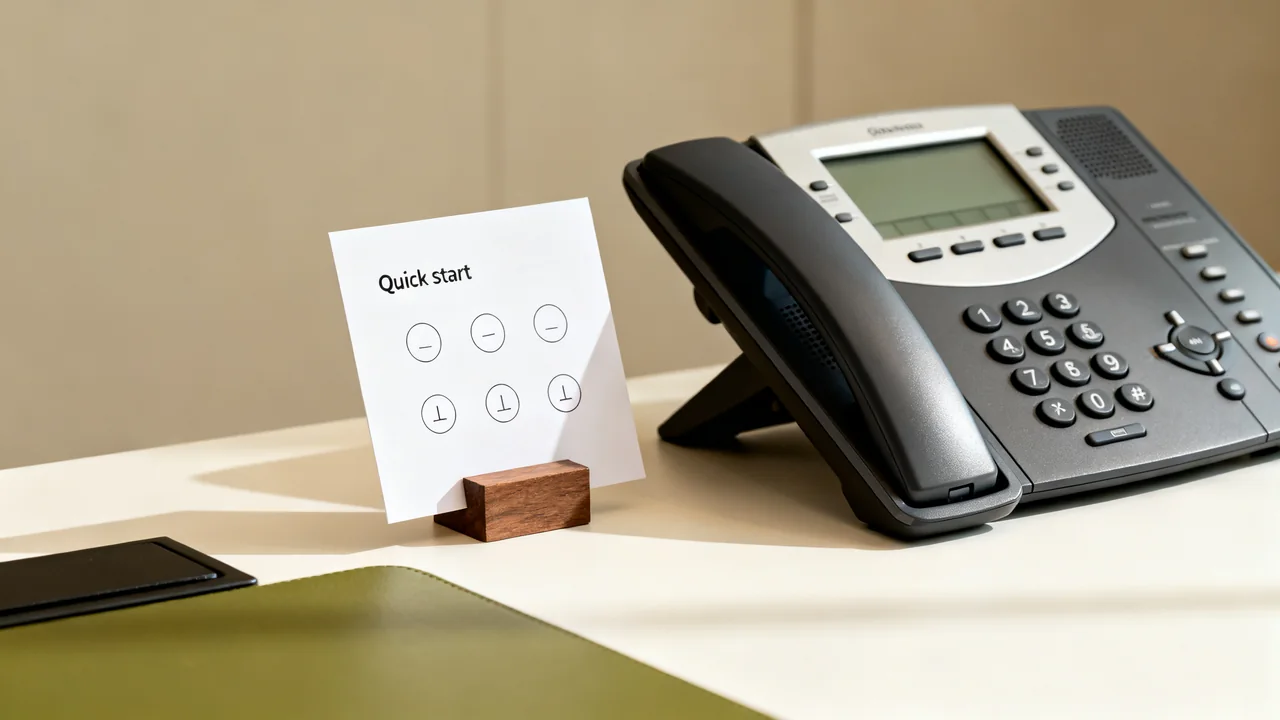
A meeting-room quick-start card should help someone perform the room’s normal tasks using the equipment actually installed. It is most useful when it names the correct connection, device and control, shows the expected result, and gives a clear route to support when that result does not appear.
Write the card after the room has passed its acceptance test. If the underlying connection is unreliable or undocumented, shorter instructions will not fix it. Keep advanced configuration and recovery procedures in a separate guide for authorized support staff.
Choose the tasks the card will cover
List the room’s supported workflows, such as presenting from a laptop, joining a scheduled call and sharing a physical whiteboard. Select the normal user tasks for the printed card. A specialized webcast or unfamiliar guest device may need an assisted process rather than another crowded instruction block.
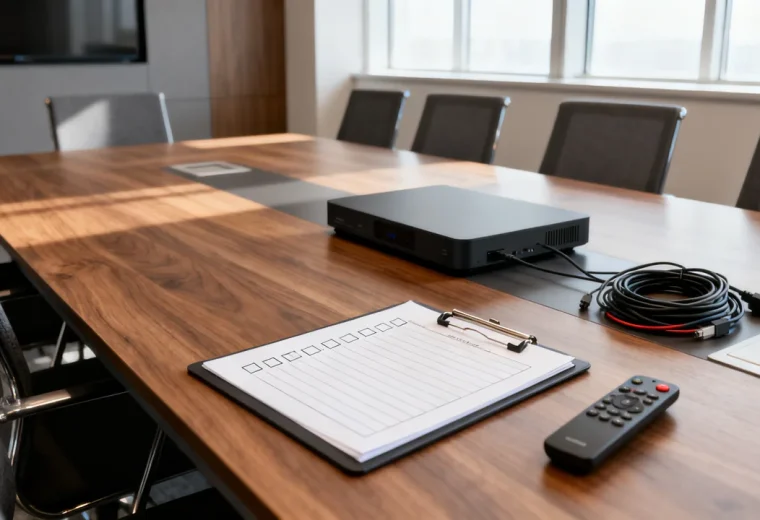
Walk through each task in the room and record what the user actually sees. Capture the display input name, the room camera and audio names in the application, and the physical location of the user cable. Do not substitute generic device names that differ from the screen.
Include the starting state and the final reset. A person may enter while the previous input remains selected or an accessory is muted. The card should tell them how to recognize the intended state without asking them to change administrator settings.
Write actions with observable results
Use a numbered sequence where order matters. Prefer an instruction such as “Select the input labeled Meeting Laptop; your desktop should appear” over “connect as usual.” The actual label must come from the installed system, not a sample template.
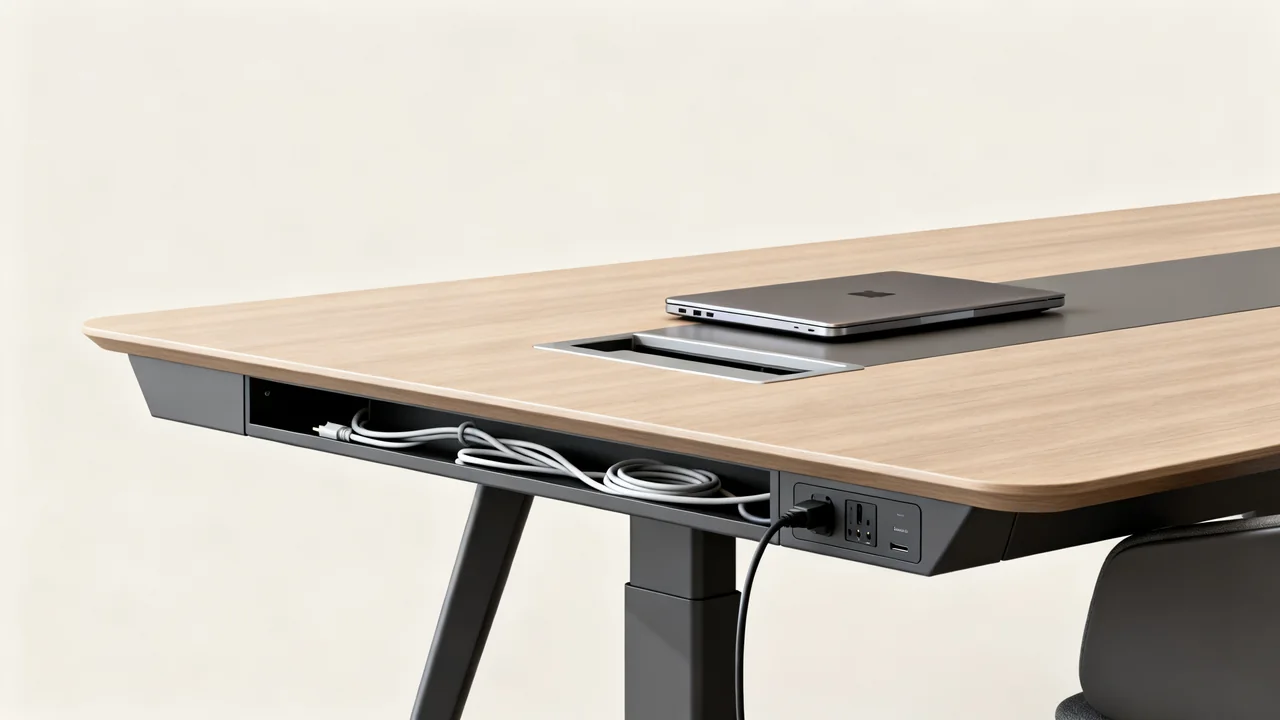
Keep different signal paths distinct. An HDMI connection may send laptop video and audio to a screen but does not by itself connect a USB room camera and microphone. If the room requires two connections, show both. If it uses a dock, state the supported laptop connection and any separate charging requirement.
Describe mute controls and indicators only after verifying the exact device. Do not assume all red lights mean the same thing. Avoid instructions to slide a mounted camera, disconnect building equipment or reset a device unless that is an approved user operation.
An illustrative card structure
The example below shows the information a card could contain. Replace every bracketed field with the room’s verified detail and test the completed instructions before printing. It is not a universal equipment procedure.
| Task | Example instruction structure | Expected result |
|---|---|---|
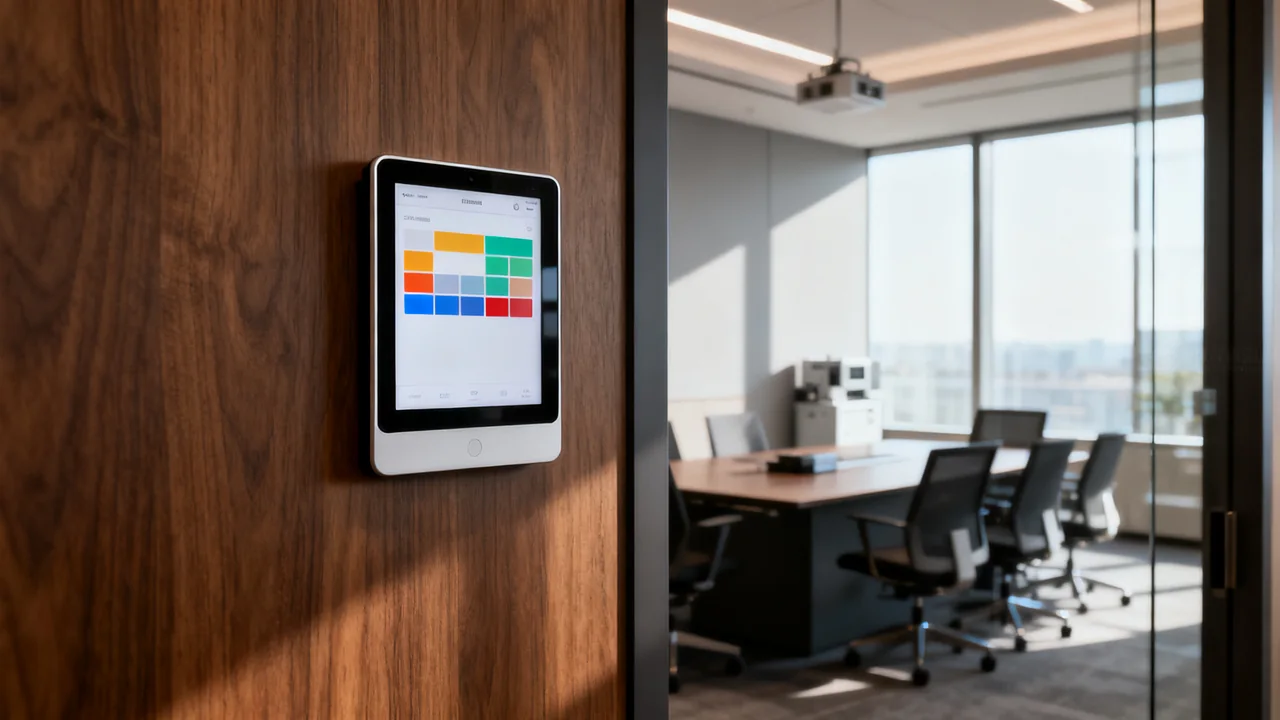
| Start | Wake the display using [verified control location]. | The room’s start screen or selected input is visible. |
| Connect | Use [tested laptop connection path] at [location]. | The required display and peripherals become available. |
| Join | Open [approved application/workflow] and select [room device names]. | The local preview and intended audio devices are active. |
| Check | Confirm the picture and ask a remote participant to check speech. | The required participants can see and hear the meeting. |
| Finish | End the call and restore [documented normal state]. | The room is ready for the next user. |
| Get help | Report the room name and observed problem through [support route]. | The responsible support team receives useful information. |
Add only approved quick checks
A concise trouble section can ask users to confirm the selected display input, chosen camera and audio devices, or an obvious mute state. Tie each check to a familiar symptom and stop before the process requires disassembly, network changes or privileged access.
Give a useful escalation instruction. Ask for the room, task, error message and affected connection. Do not ask users to post passwords or private meeting details in a shared fault report. If a fallback is available, include only the route that has been tested and approved.
Keep factory reset and firmware instructions out of the casual-user card. Those actions can change the room configuration or interrupt other services. The support guide should identify who is authorized to perform them and how the configuration is recovered.
Make the card readable where it will be used
Place the draft at the intended location and ask users to read it under normal lighting. Use clear type, sufficient contrast and simple spacing. Avoid relying on color alone to distinguish steps. A small diagram can identify a control or cable more clearly than a long description.
Check glare if the card is laminated or placed behind a cover. Make sure someone using the relevant control can also access the instructions. Provide an accessible digital version where useful, and verify that any QR code or link leads to the correct room guide without unnecessary access barriers.
For multiple rooms, keep the structure consistent while retaining each room’s actual details. Copying another room’s input name or device label can make a polished card actively misleading.
Test and maintain the instructions
- Ask a person unfamiliar with the room to complete a normal task.
- Observe where they pause, guess or need assistance.
- Correct the instruction or room setup and repeat the affected step.
- Add the room name, guide owner and revision date.
- Update the card when the supported workflow changes.
- Remove superseded copies so users do not follow conflicting instructions.
Keep user feedback with the room’s support record. If several people fail at the same step, investigate whether the label, connection or default setting should change. A good card records a workable process; it should not become a collection of increasingly complicated workarounds.
Have a question or a correction?
Contact the editorial team