Before ordering a conference dock, identify what each laptop port can actually do. Two ports with the same shape can support different functions, and a dock’s available sockets do not prove that the connected laptop can use all of them. Build a compatibility record for the room’s required display, audio, camera, network and charging functions.
The useful deliverable is a tested connection plan, not a list of connector names. Keep the laptop model, dock model, cable and operating system together in that record so another person can reproduce the working configuration.
Inventory the exact laptop models
List the devices that regularly use the room, including managed visitor devices where their requirements are known. Use the manufacturer’s model or product identifier and current operating system. A release year or brand name is too broad to establish the port configuration.
Read each laptop’s official specifications and port documentation. Where a model has several configurations, confirm the actual configuration in use. Record which port supports the intended dock, rather than assuming all USB-C ports on the laptop are equivalent.
For occasional unknown guests, document a fallback and a support route. Do not promise to support every possible laptop by adding adapters to the room. Some guest devices have software or security restrictions that hardware alone cannot resolve.
Separate connector shape from capability
| Connection | What to verify | Assumption to avoid |
|---|---|---|
| USB-C | Documented data, display and charging capabilities for the specific port. | The connector shape proves video output or laptop charging. |
| Thunderbolt | Host and dock compatibility, supported fallback modes and operating-system requirements. | Every feature follows from a logo or connector alone. |
| USB-A | Data support for peripherals or a documented USB graphics solution. | A passive connector adapter provides native HDMI output or charges the laptop through USB-A. |
| HDMI or DisplayPort output | Supported output mode and compatibility with the room display. | The display cable also connects the room’s USB camera and microphone. |
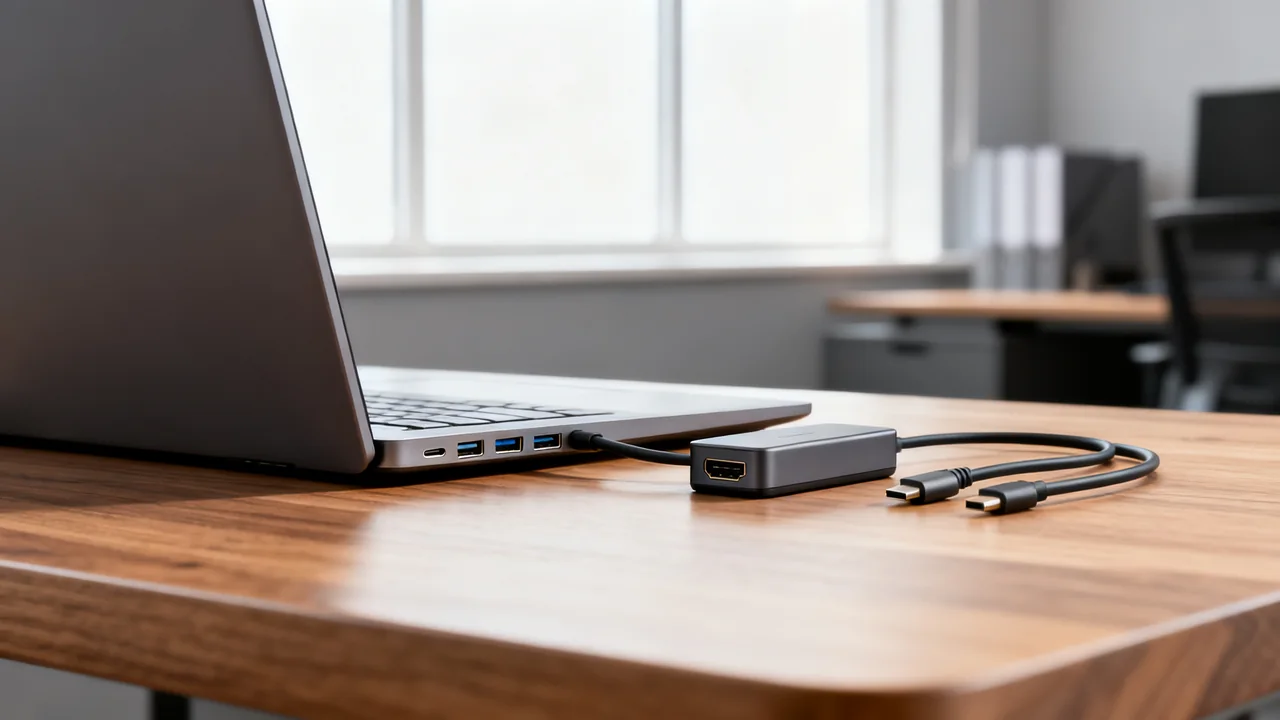
A USB-C dock using DisplayPort Alternate Mode needs the corresponding video capability from its host. A USB graphics dock has a different software-dependent path. Dell’s docking-station guide distinguishes these connection types. Confirm the specific candidate dock rather than extending one manufacturer’s example to all products.
Match the complete display requirement
Write down the number of displays, resolution and refresh rate required in the room. Check the laptop, dock and display documentation for that combination, including operating-system limitations. A dock advertising several display outputs does not establish that every host can drive them simultaneously in the desired mode.
Record the included host cable and the cables to each display. Check their required type, supported length and any directionality. If an extension or adapter is needed for the actual room route, include that exact component in the compatibility test and quote.
A display that lights up is only a partial result. Show representative content, check the configured output mode and run the camera and audio at the same time. The room needs the complete workflow to function, not just an isolated screen connection.
Check power and software separately
If charging through the dock is required, verify that the laptop accepts power through the chosen port and that the dock, power supply and cable provide the supported arrangement. Distinguish total power-supply rating from power available to the host. Keep a documented alternative charger where the dock cannot meet the laptop’s requirements.
Identify drivers, permissions, firmware and management requirements before a trial with locked-down laptops. A feature that works on an administrator’s device may fail for a visitor who cannot install the needed software. Ask IT how approved software would be distributed and maintained.
Do not treat a dock’s network port as an automatic guest-network solution. Check whether the connected laptop is allowed to use that network and whether the intended access works under the organization’s policy.
A hypothetical compatibility record
Imagine two groups of regular users. Group A has laptops with documented USB-C display output and charging support. Group B has laptops with HDMI output and USB-A peripheral connections. These are illustrative requirements; they do not identify real models.
For Group A, the team could test a compatible USB-C dock with the room display, camera and speakerphone. For Group B, it could test direct HDMI plus a supported USB peripheral connection, with the laptop’s own charger. A USB graphics dock is another candidate only if its exact hardware and software requirements are acceptable.
The final matrix should say which configuration passed each function and which remains unsupported. Do not calculate coverage from connector counts alone. Even a majority of similar laptops does not establish compatibility for the remaining users.
Run an acceptance test before wider purchase
- Use a representative device from each supported model and configuration.
- Check display mode and readable content on every required screen.
- Test camera, microphone and speaker together in a remote call.
- Confirm charging and network access where required.
- Test reconnection, sleep and the normal room reset procedure.
- Repeat as a standard user with the expected permissions.
- Record exact hardware, cables, software and any limitations.
Keep the matrix beside the installation record and summarize the approved connection paths on the room’s quick-start card. Revalidate the affected path when a dock, cable, laptop configuration or important software component changes. That record makes future replacement purchases more reliable than remembering that a USB-C dock once worked.
Have a question or a correction?
Contact the editorial team