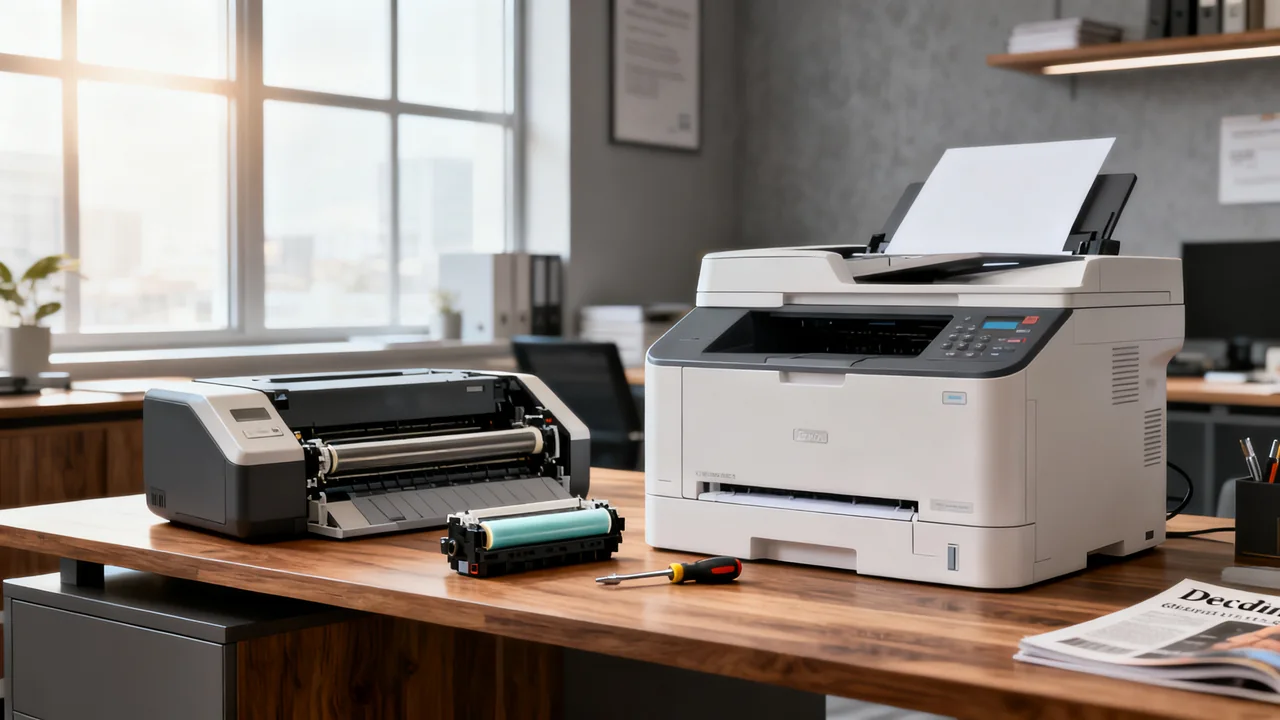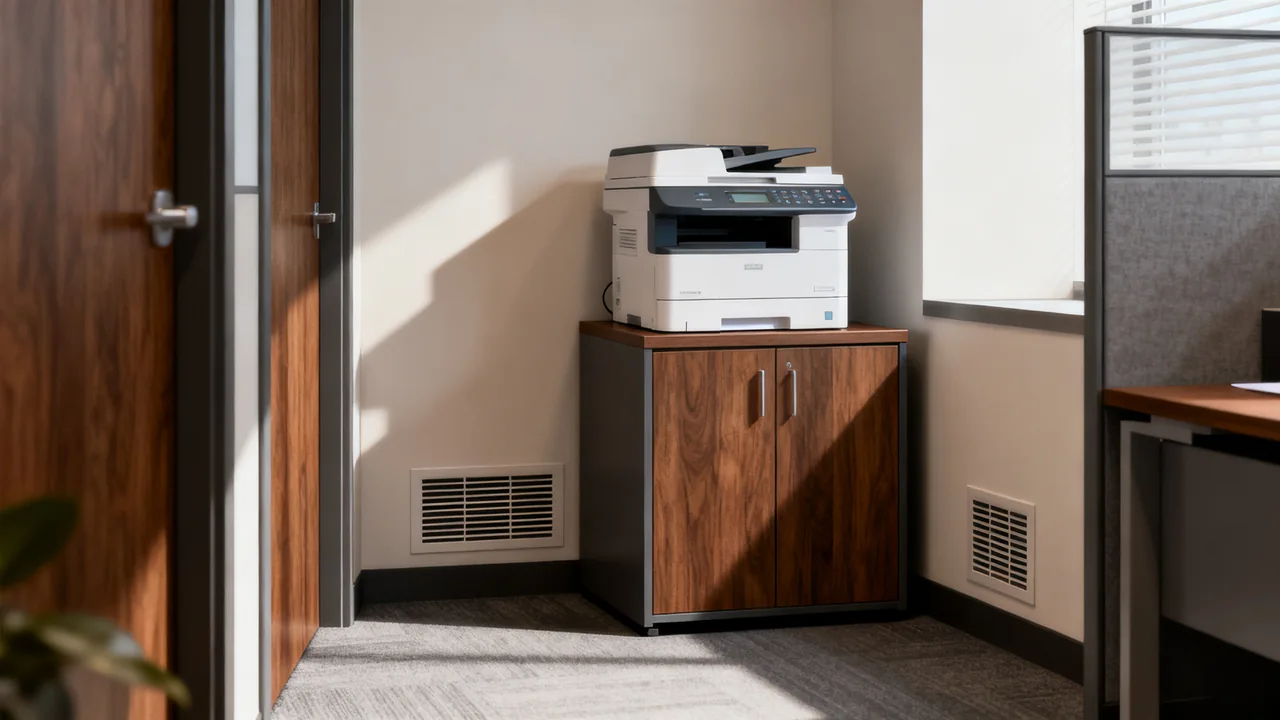
A printer location needs to work while someone loads paper, opens a service door, scans an original, and collects a job. Its closed dimensions are only the starting point. Before moving furniture, compare possible locations against the exact device’s operating instructions and the way people use the room.
Map the trips and the interruptions
Note who uses the printer, when jobs arrive, and what people carry. A convenient position for frequent users may create an awkward crossing for others. Observe doors, chairs, storage access, and routes between desks. Include the extra space occupied by a person retrieving output rather than looking only at the machine.
Discuss noise with the people who will work nearby. Evaluate a representative job from those seats if possible. There is no universal distance that makes a printer unobtrusive, and a quiet mode may change performance. Consider where calls and concentrated work happen instead of treating one person’s desk as a convenient equipment shelf.
Keep room access and safety requirements as constraints, with any uncertain issue referred to the person responsible for the building. This planning check does not establish compliance with a building or accessibility rule.
Measure the operating and service envelope
Obtain the exact model’s dimensions, weight, ventilation clearances, and installation requirements. Measure with trays extended, scanner lids raised, and user-access doors open as instructed. Paper supply and output may project beyond the machine’s body.
Check the supporting furniture’s rated capacity, stability, usable surface, and suitability for the device. Include installed options and loaded supplies where relevant. Do not assume that a cabinet’s dimensions establish its load capacity or that two shelf ratings can simply be added together.
A service technician may need access beyond normal user operation. Ask what can be serviced in place and what requires moving the device. Plan safe handling according to its instructions; a wheeled cart is appropriate only if its capacity, stability, restraints, and intended use fit the installation.
| Location check | Information to collect | Reason to reject or revise |
|---|---|---|
| Operating space | Extended trays, lids, doors, and user access | Normal tasks obstruct a route or adjacent furniture |
| Support | Furniture rating and device’s installed weight | Unverified capacity, instability, or unsuitable surface |
| Environment | Model ventilation and temperature guidance | Enclosure or location conflicts with instructions |
| Connections | Approved power and intended network access | Installation would need improvised wiring or unsafe cable routing |
| Privacy | Who can see or collect output | Sensitive jobs are exposed without a suitable control |
Confirm power and network arrangements before moving
Follow the printer’s electrical installation requirements. If the proposed location lacks a suitable connection, ask a qualified person to resolve it. Do not invent an extension-cord rating, route a power lead under carpet, or modify electrical connections to make a preferred spot work.
For Ethernet, confirm that the network connection is active and permits the intended printer access. Route cables using an appropriate arrangement that protects them and keeps walking routes clear. For Wi-Fi, test the actual device’s connection and the users’ access from the proposed position; a laptop’s signal indicator alone is not a complete printer test.
Check both printing and scanning. Guest-network isolation, software requirements, and destination permissions can affect access independently of signal strength. Have the network administrator resolve configuration issues rather than treating every failure as a reason to add a wireless extender.
Keep document privacy part of the layout
Consider what visitors and passersby can see in the output tray, on the scanner glass, and on the control panel. Turning the tray away from visitor seating may help, but placement alone is not a complete information-control policy.
If supported and appropriate, job release can require a user to authorize printing at the device. Confirm its behavior and configuration with the responsible administrator. It does not remove the need to collect originals and printed pages or to manage who can use the device.
Agree how unattended documents are handled under the organization’s policy. Do not create an open “confidential leftovers” tray or automatically shred every unclaimed page at the end of a day. Records may have handling and retention requirements that the placement decision should respect.
Compare two locations using an illustrative trial
Assume an imaginary office is choosing between a storage alcove and a shared equipment area. No dimensions in this example are prescribed clearances. The team first measures the printer and records the manufacturer’s required space, then marks the full operating envelope at each location.
The alcove fits the closed printer but prevents a service door from opening and makes someone retrieving output stand in the doorway. The shared area fits the operating envelope and has a suitable existing connection, but a nearby colleague hears each long job during calls. The team tests an alternative orientation and schedules the predictable batch away from those calls before deciding whether the location is acceptable.
The result comes from the specific room and users. It does not establish that an alcove is always unsuitable or that a fixed distance from a desk controls noise. Keep the measurements and observed tradeoffs so the decision can be revisited when equipment or staffing changes.
Finish with an installation and follow-up check
After installation, confirm that doors, trays, and nearby furniture still move freely. Check the device’s approved ventilation space and that stored paper has not migrated into it. Run a print and scan from each required user path, then have an ordinary user load paper and retrieve output.
Put supplies where they can be reached without blocking vents or service access. Assign responsibility for consumables, error reports, and service coordination. If the device must be moved, document who should arrange it and the handling instructions to follow.
- Use the exact model’s clearance and installation requirements.
- Verify support and safe access with the device fully in use.
- Confirm suitable power and working network paths.
- Observe nearby users during a representative batch.
- Apply the organization’s document-handling policy.
- Recheck the arrangement after a representative period of real use.
Have a question or a correction?
Contact the editorial team