Network and USB printing can both serve a small office, but they create different dependencies. The useful question is which users need access, through which supported devices, and who will maintain the setup. A connection type alone does not determine print speed, confidentiality, or the number of people a printer can serve.
Separate direct USB from shared USB
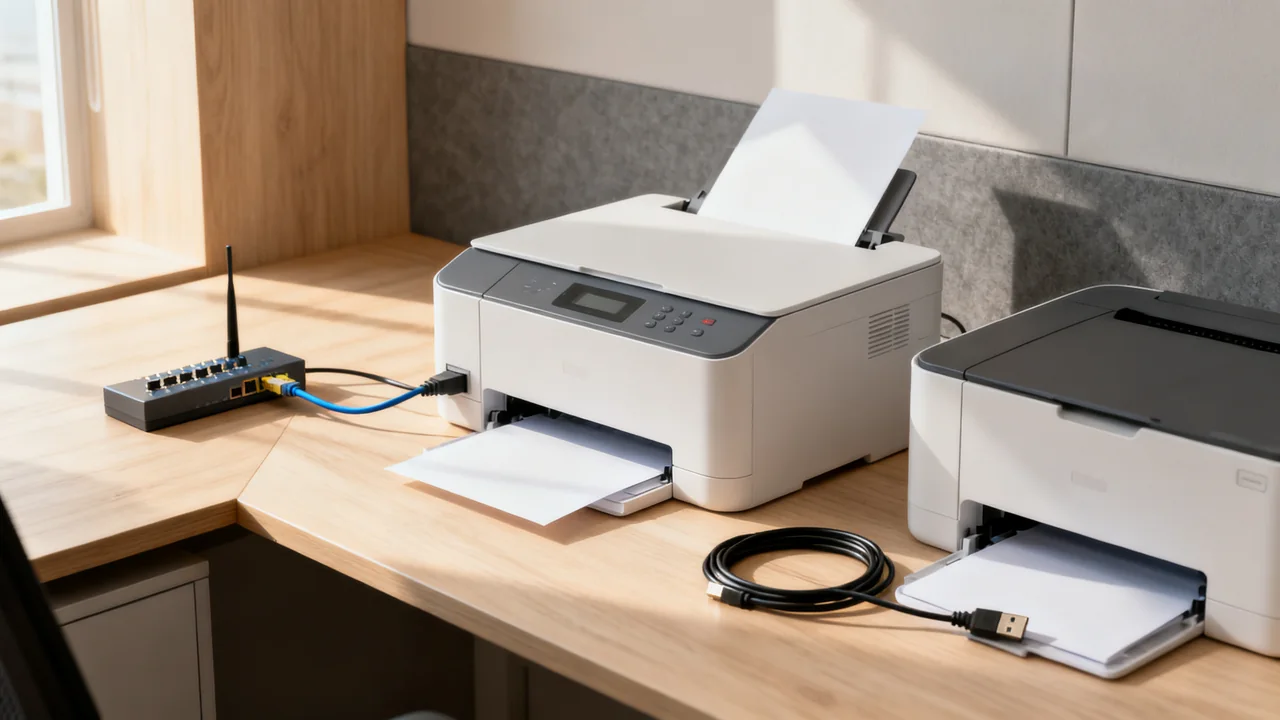
Direct USB normally connects a printer to a host computer using a supported cable and software. It can suit an assigned workstation without requiring the printer itself to join the office network. Check the exact printer, operating system, and cable requirements rather than assuming every connector combination works.
Sharing a USB-connected printer through a computer is a different arrangement. Where supported, other users send jobs through that host. The host’s availability, permissions, software, and network access become part of the printing service. If it sleeps, disconnects, or is unavailable, shared printing may be affected.
Do not apply one generic maximum cable length across USB versions, signaling modes, and cable types. Use a cable arrangement supported for the exact devices. If the desired location requires an uncertain extender or adapter chain, ask for a supported design or reconsider the placement.
Understand direct network printing
A network printer connects through a supported wired or wireless network interface. Users may print directly to it or through a managed print service. Those arrangements have different software and access requirements, so identify which one is intended.
Being on the same Wi-Fi name is not a guarantee that a user can reach the printer. Guest isolation, network segmentation, permissions, supported protocols, and client software can affect access. Have the administrator configure the intended route instead of opening broad access to make discovery convenient.
Ethernet avoids dependence on the printer’s wireless link, but still depends on the relevant network equipment and configuration. Wi-Fi offers placement flexibility where the supported connection is reliable. Neither eliminates the printer’s own queue, supply, software, or service dependencies.
Compare supported workflows, not assumed features
Check the computers, phones, applications, and print features actually needed. A network connection does not automatically provide mobile printing, user authentication, PIN release, or accounting. Those features depend on the printer, software, licenses, and setup.
Likewise, USB does not automatically make a document confidential. The host, application, printer storage, visible output, and other enabled interfaces remain relevant. Decide information controls with the responsible administrator and test their behavior.
If the device also scans, test scanning separately. A working print driver does not establish that scan-to-folder, computer-initiated scanning, or mobile scanning works through the same route. Include the scan destinations in the requirement sheet before comparing installations.
| Arrangement | Main dependency | Question to answer |
|---|---|---|
| Direct USB | Supported local host, cable, and software | Is one workstation the intended access point? |
| USB shared through a host | Host availability and supported sharing configuration | Who keeps the host available and maintains access? |
| Direct network printing | Printer interface, network route, and client support | Can every authorized client reach the required functions? |
| Managed print service | Service infrastructure and administration | Which controls and dependencies does the service add? |
Test interruptions without promising zero downtime
List the interruptions relevant to each option: unavailable host, wireless trouble, network outage, changed credentials, software update, or printer service. Ask what users will see and who responds. Test supported recovery procedures with harmless jobs during an agreed trial.
Some local printing workflows can operate without internet access, while cloud-dependent services may not. Verify the exact design instead of saying all network printers work during an internet outage. A local network and an internet connection are distinct, but the application may depend on both.
Do not treat USB as a way to bypass the shared printer’s workload. If USB and network inputs feed the same machine, they can still compete for its print engine and queue. A large USB job does not automatically leave the printer free for network users.
Work through an illustrative team decision
Assume an imaginary office has four fixed workstations and two laptops. Its current printer is shared through a desktop that is sometimes taken offline for maintenance. The team records that shared jobs cannot proceed during those periods. These are scenario assumptions, not typical downtime figures.
The team compares keeping the host available under an agreed support process with using the printer’s supported direct network connection. It tests each authorized device, the required print settings, and any scan workflow. If contractors need access, the administrator defines a permitted route; access from a guest network is not presumed.
The final choice depends on the demonstrated workflow, available support, and installation costs. Team size alone does not create a cutoff where USB stops working or network printing becomes mandatory. A simple supported arrangement can be preferable to a more complex one whose dependencies nobody owns.
Document the chosen setup and any fallback
Keep the printer’s logical name, physical location, supported clients, installation instructions, and service owner in a shared guide. Store administrative credentials through the organization’s approved method, not on an instruction sheet next to the printer.
If more than one connection remains enabled, confirm that this is supported and intentional. Name queues so users can distinguish them, and check whether controls differ between routes. A fallback that bypasses required accounting or access rules may not be an acceptable fallback.
Agree who reviews software and firmware updates, changes network settings, and removes access when needed. Network printing still requires maintenance; direct USB still requires a supported host. The aim is a manageable dependency list, not a claim that one method has no failure points.
- Identify direct, host-shared, and managed workflows separately.
- Verify exact cable, software, and client support.
- Test printing and scanning through each intended route.
- Review access and storage independently of connection type.
- Document outages, recovery, ownership, and permitted fallback.
- Recheck after material network or device changes.
Have a question or a correction?
Contact the editorial team