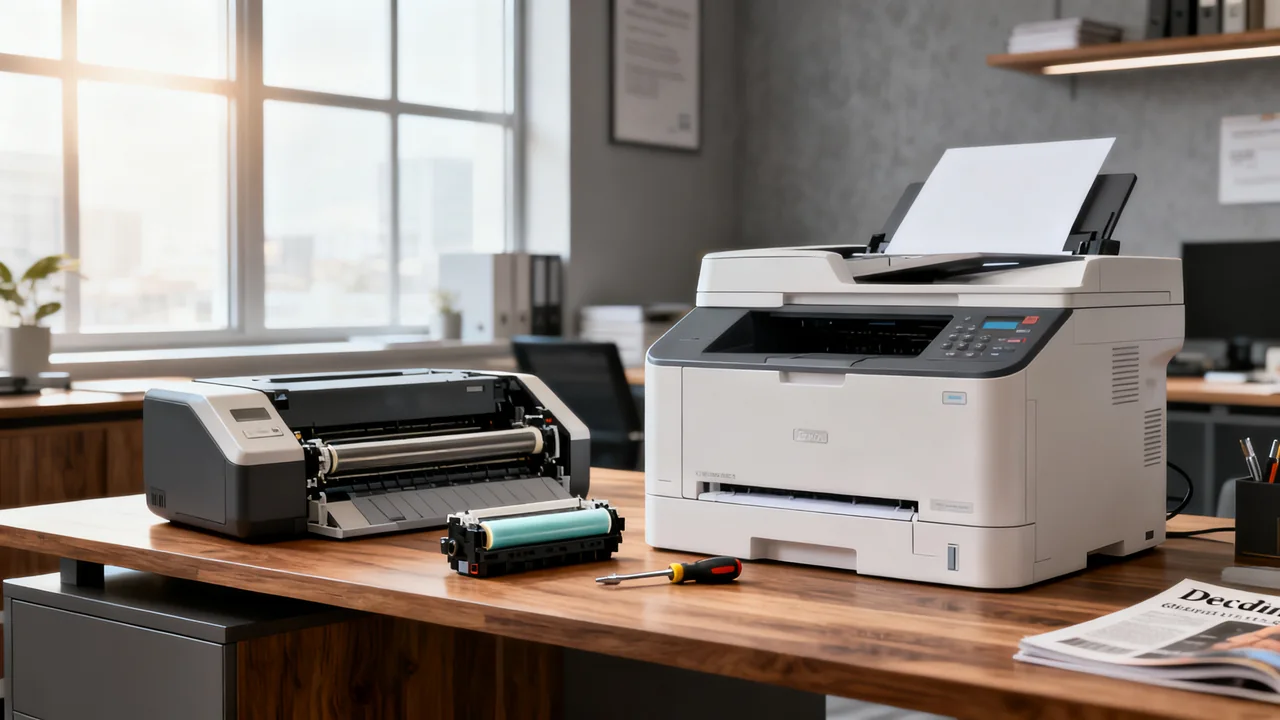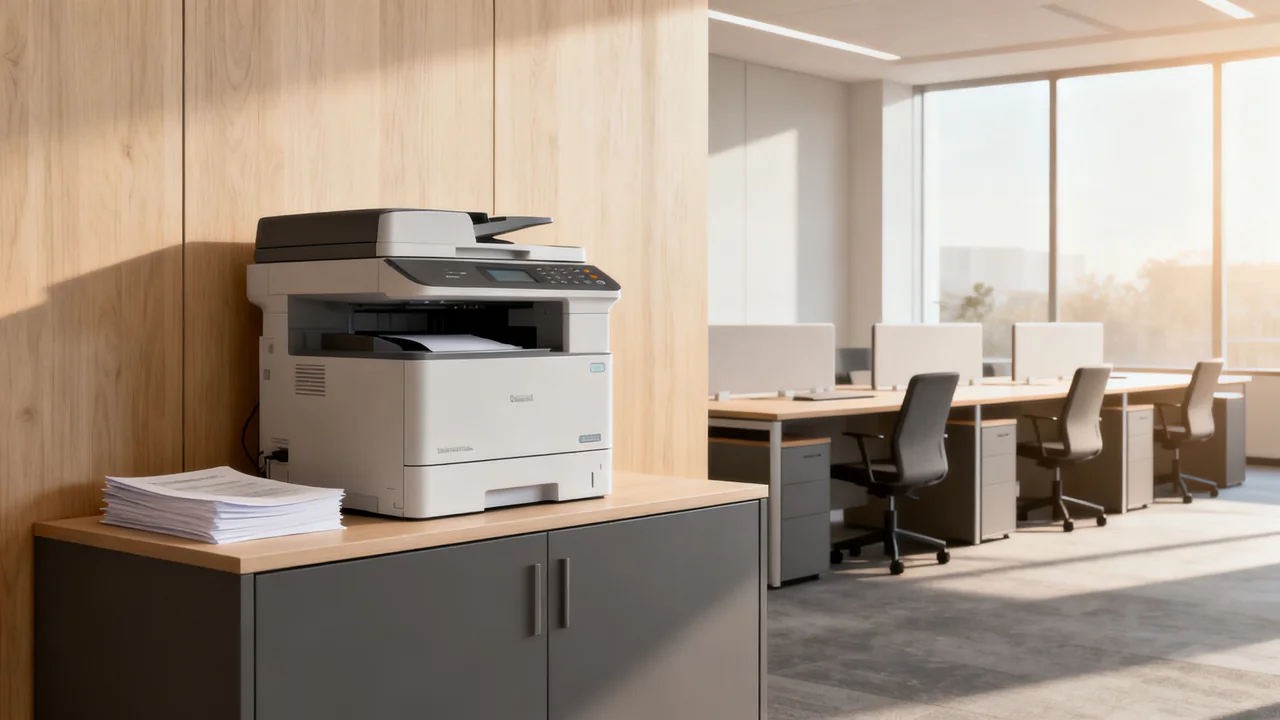
A shared printer for five people needs to fit the jobs those people actually send. Team size alone does not determine print volume, whether color matters, or how quickly a queue must clear. Build a short record of printing and scanning needs before comparing models. That record gives you a purchasing brief you can send to suppliers and a practical test for the shortlist.
Make a workload record that includes the awkward jobs
Record printed sides, paper sheets, color jobs, scans, and copies separately. A two-sided document can use fewer sheets without reducing the number of printed sides. Note which unit your current printer’s counter reports. Keep several representative files, including the document that takes longest to produce and the paper type that causes the most trouble.
Cover a representative working period and include known monthly or seasonal peaks. A quiet week does not reveal the requirement for an annual event pack. Ask each person what they print, who needs it, and how long a delay they can accept. You may discover that one color task determines the specification even though most output is monochrome.
- Count ordinary jobs and the largest deadline-sensitive batch.
- List paper size, paper weight, envelopes, labels, and any other special media.
- Identify documents that require two-sided scanning, rather than just two-sided printing.
- Note operating systems, mobile devices, and where scans must be saved.
- Record whether documents can wait in a shared output tray.
Decide which functions belong in the shared device
A single-function printer can be sufficient when the team already has a suitable scanner. An all-in-one combines printing, scanning, and copying in one location, but check each function independently. An automatic document feeder, or ADF, feeds loose sheets for scanning. Its supported original sizes and its ability to scan both sides may differ from the printer’s paper handling.
Consider what happens when the device needs service. A separate scanner can keep scanning available while printing is interrupted, although it adds another device to support. An all-in-one may save space and simplify purchasing. There is no need to duplicate equipment when occasional downtime can be covered by an agreed alternative.
Do not buy a fax function or advanced finishing solely because it appears in a bundle. Conversely, do not assume a basic scanner can handle bound originals, fragile paper, or a recurring batch without manual work. Give these exceptions their own line in the purchasing brief.
Check shared access using the actual computers
Ethernet can suit a fixed printer near a network connection; Wi-Fi can offer more placement options. Either needs to work with the office network and its access rules. A laptop on guest Wi-Fi may not be able to reach a printer on the staff network. Confirm the intended arrangement with whoever manages the network.
Test printing from the operating systems and applications the team uses. Also test scanning, because a printer working successfully does not prove that its scan software or destinations are supported. Include any mobile workflow that is a genuine requirement.
If confidential documents must not sit unattended, evaluate a supported job-release feature and its administration requirements. Verify how users identify their jobs, what happens to uncollected jobs, and whether the feature needs extra software or licensing. Select controls based on the documents and office policy, rather than a rule about the number of staff.
Use workload and trial results to compare capacity
Where the manufacturer publishes a recommended monthly page volume, compare it with your recorded output and foreseeable changes. A maximum duty-cycle figure is a separate limit, not a target for routine use or a promise that a particular batch will finish on time. If the documentation is unclear, ask the supplier to explain its recommendation in writing.
Check tray capacity using the paper you will load, including any separate limits for specialty stock. More capacity can reduce interventions, but an additional tray is useful only if it supports a real workflow. A team alternating between letterhead and plain paper may value another tray more than a team printing a larger quantity on one stock.
| Observed need | Evidence to request | Trial to run |
|---|---|---|
| Several jobs arrive together | Supported print and queue workflow | Send different files from the team’s devices |
| Regular two-sided originals | ADF duplex-scanning specification | Check both sides and output page order |
| Special paper | Approved size, weight, tray, and print mode | Print a supplier-approved sample |
| Private documents | Job-release requirements and licensing | Release, cancel, and retrieve test jobs |
Work through an illustrative purchasing brief
Assume, solely for this example, that five colleagues record 280 printed sides in a representative month. Their busiest job is a 40-page training pack, and they scan a ten-sheet, two-sided packet each week. They need color only for a quarterly presentation, which they currently order externally.
The team can compare a monochrome all-in-one with duplex scanning against a color alternative and the cost of retaining that external color service. The correct choice depends on the quotes and required turnaround, not just the small color volume. Their trial includes the training pack, the two-sided packet, and jobs from every supported computer. These sample counts describe this imaginary office; they are not recommended thresholds for other teams.
Compare ownership costs and the physical fit
For each quote, list purchase or rental charges, included supplies, replacement supplies, separately replaced wear parts, delivery, support, and optional software. Use a consistent comparison period. A supply-only cost per page does not include every ownership expense, and published cartridge yield will not predict every document’s consumption.
Measure the printer with trays extended and access doors open. Leave the clearances specified for the exact model, plus space to carry paper and retrieve jobs. A machine that fits a shelf when closed may be awkward or unsuitable to service there. Check the furniture’s load rating and stability without treating the printer’s footprint as the only requirement.
During a demonstration, listen from nearby desks and try ordinary tasks: loading paper, identifying a stopped job, changing settings, and finding the correct scan destination. Ask colleagues who will use the printer to perform these tasks. A successful demonstration by the salesperson alone does not establish that the workflow is clear to the team.
- Confirm the final model and options match the trial unit.
- Keep written compatibility and media information with the quote.
- Document who maintains supplies and handles service requests.
- Agree a fallback for deadline-sensitive work during downtime.
- Check delivery, installation, support, and return terms before ordering.
Have a question or a correction?
Contact the editorial team